How to Remove GPS Location Data from Photos (iPhone, Android, Windows & Mac)
Geotagging is genuinely useful — it lets Google Photos build travel maps, helps real estate agents document listings, and keeps field research organized. We built FreeGeoTagger precisely because adding GPS to photos matters. But the same metadata becomes a privacy problem the moment a photo leaves your control. A photo taken at home and posted to a forum, marketplace listing, or public website can reveal your street address to anyone who checks the EXIF data.
This guide covers both halves of responsible geotagging: how to find out whether a photo contains GPS data, and how to remove it on iPhone, Android, Windows, and Mac before sharing.
What GPS Data Is Actually Stored in a Photo
When location services are active, your camera writes several fields into the photo's EXIF metadata block: GPSLatitude and GPSLongitude (your position, typically accurate to 5–10 meters on a modern phone), and often GPSAltitude, GPSImgDirection (the compass heading you were facing), and a GPS timestamp. Combined with the capture date, this is enough to reconstruct not just where a photo was taken, but when you were there and which direction you were looking.
None of this is visible in the image itself. It sits in a structured data section of the file that any EXIF reader — including free browser tools, Windows Explorer, and countless scripts — can extract in milliseconds. For a deeper look at how these fields work, see our complete guide to EXIF GPS metadata.
First: Check Whether Your Photo Has GPS Data
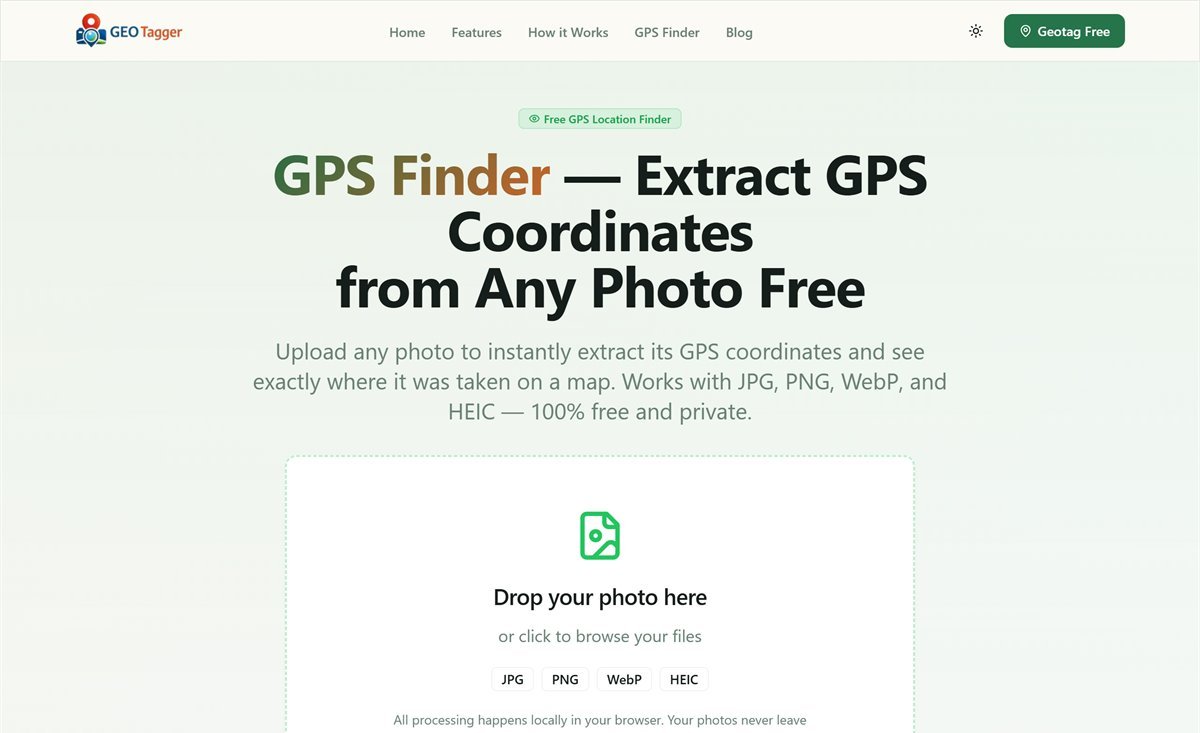
Before stripping anything, confirm what is there. The fastest way is our free GPS Finder: upload the photo and it reads the EXIF block locally in your browser — nothing is uploaded to a server — and shows any embedded coordinates on a map. If it reports "No GPS data found," the photo is already safe to share from a location standpoint.
You can also check natively on each platform:
- iPhone: open the photo in the Photos app and swipe up, or tap the info (i) button. A map appears if location data is present.
- Android: open the photo in Google Photos and tap the info icon. A map thumbnail with a place name means GPS is embedded.
- Windows: right-click the file → Properties → Details tab. Scroll to the GPS section — latitude and longitude appear if present.
- Mac: open the photo in Preview, press Command-I to open the inspector, and look for the GPS tab.
Remove GPS Data on iPhone
iOS has built-in location removal since iOS 13. Open the photo in the Photos app, tap the info (i) button, then tap Adjust next to the location map and choose No Location. This removes the location from the photo as stored in your library.
Even easier: when sharing, iOS can strip location just for that share. In the share sheet, tap Options at the top of the screen and toggle Location off. The recipient gets the photo without coordinates while your original keeps them — usually the ideal arrangement, since your own library remains organized by place.
Remove GPS Data on Android
In Google Photos, open the photo, tap the three-dot menu or the info icon, tap the edit (pencil) icon next to the location entry, and choose Remove location. Note that on some Android versions this only removes the location from Google Photos' database; the copy shared from other apps may still contain the original EXIF. To be certain, share the photo from within Google Photos itself, or verify the shared file with a GPS checker afterwards.
Samsung Gallery users: open the photo, tap the info icon, tap Edit, and delete the location entry. Most other OEM gallery apps offer an equivalent under photo details.
Remove GPS Data on Windows
Windows can strip metadata without any extra software. Right-click the photo → Properties → Details tab → click Remove Properties and Personal Information at the bottom. Choose Create a copy with all possible properties removed to get a cleaned duplicate next to the original, or select Remove the following properties from this file and tick only the GPS fields to strip location while keeping camera settings and dates.
The selective option is worth using: capture dates are useful for sorting, and there is no privacy reason to delete your camera's aperture setting. Only the GPS block reveals where you were.
Remove GPS Data on Mac
Open the photo in Preview, press Command-I to open the inspector, select the GPS tab, and click Remove Location Info at the bottom of the panel. Save the file and the coordinates are gone. In the Photos app on macOS, you can instead use Image → Location → Hide Location, and like iOS, the share sheet offers per-share location stripping.
Does Social Media Strip GPS for You?
Mostly yes — but with important caveats. Instagram, Facebook, Twitter/X, WhatsApp, and most large platforms remove EXIF metadata server-side when you upload, which is why photos downloaded from social media never contain GPS. However:
- The platform reads the data before stripping it. Deleting GPS protects viewers from seeing your location, not the platform from knowing it.
- Email and cloud links do not strip anything. A photo attached to an email or shared via a Google Drive / Dropbox link arrives byte-for-byte identical, GPS included.
- Marketplace and forum uploads vary. Smaller sites, classified-ad platforms, and self-hosted forums often keep original files untouched — these are exactly the places where a home address leak matters most.
The safe rule: if the destination is not one of the major social networks, strip GPS yourself before uploading, then verify with a checker.
When You Want the Opposite: Adding Location Back
Removing GPS is the right call for public sharing — but the same metadata is valuable in your own archive. Photos with location sort themselves into trip albums, appear on map views, and remain searchable by place years later. A sensible workflow is to keep GPS in your originals (adding it with FreeGeoTagger where it is missing) and strip it only from the copies you publish.
If sharing accidentally stripped location from photos you wanted to keep tagged — a common casualty of WhatsApp transfers — you can restore the coordinates in seconds: upload the photos, pin the spot on the map, and download. Our guides for iPhone and Android walk through it step by step.
Conclusion
GPS metadata is a tool, not a threat — as long as you control where it goes. Check photos before publishing them anywhere that preserves original files, use your platform's built-in removal for public shares, and keep location data in your private archive where it does its best work. Two free tools cover the whole workflow: the GPS Finder to see what a photo contains, and FreeGeoTagger to add or update coordinates when you need them — both running entirely in your browser, with your photos never leaving your device.
Frequently asked questions
How do I remove GPS location data from a photo?
First check what the photo contains using a GPS reader, then strip it. On iPhone use the share sheet's Options and turn off Location; on Windows use File Properties and Remove Properties; on Android use the photo's details panel.
Do social media platforms remove photo location data?
Major platforms including Instagram, Facebook and X generally strip EXIF metadata when processing uploads. Direct file transfers, email attachments, messaging apps that send originals, and cloud storage links often preserve it.
How can I check whether a photo contains GPS data?
Open it in a GPS reader such as FreeGeoTagger's GPS Finder, which extracts the EXIF coordinates locally and shows the location on a map. On Windows you can also check Properties, then Details.
Does removing GPS data damage the photo?
No. Only the metadata section is rewritten and the compressed pixel data is untouched, so the image is visually identical with no re-compression.
Should I remove location from every photo I share?
Consider it for photos taken at home, at a child's school, or anywhere you would not publish the address. Location data is genuinely useful for organising your own archive, so the decision is about what you publish, not what you keep.